What You'll Need
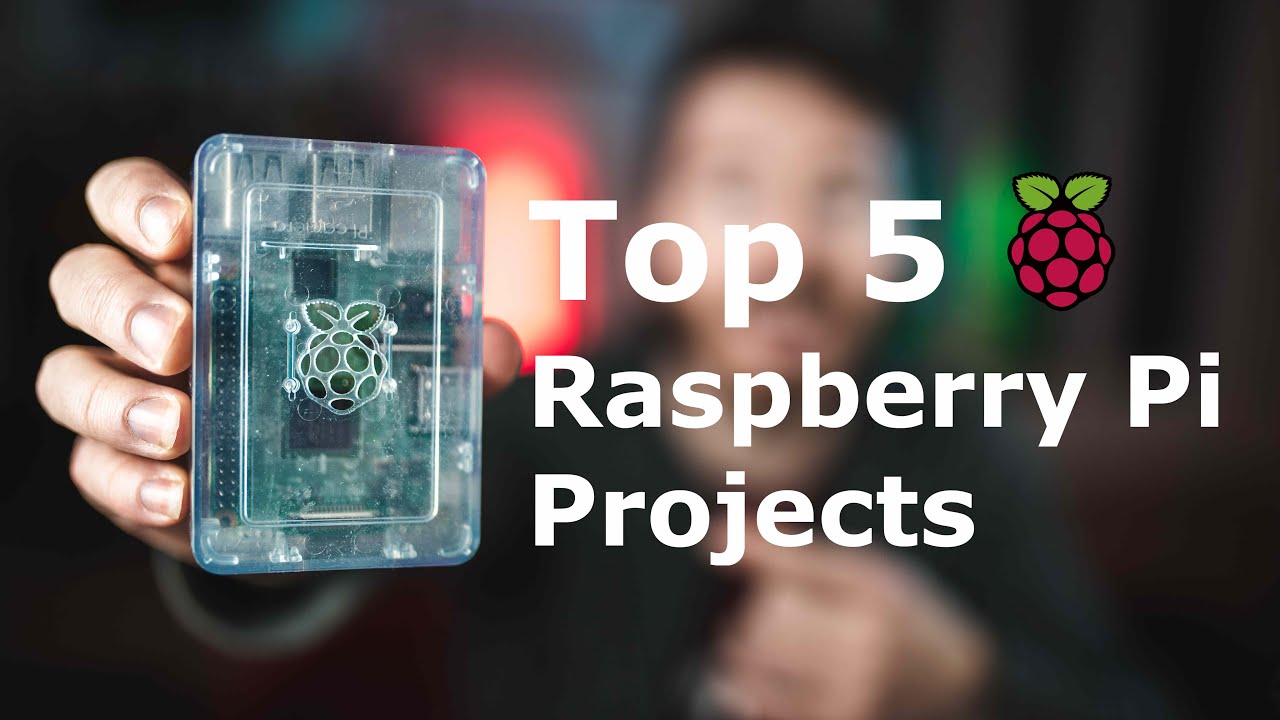
I get asked all the time: "I just got a Raspberry Pi. What do I even do with it?"
And yeah, I get it. You unbox this little board, plug it in, and suddenly you're staring at a Linux desktop with no idea where to start. Most beginner project lists just throw out five ideas with no explanation of why they matter. That's not helpful.
So here's the deal. When you're learning Raspberry Pi, there are three main skills you need to build:
- Linux basics — The Pi runs Linux. If you've never used it, commands like `sudo apt-get` and `chmod` look like gibberish.
- Programming — Python is the go-to, but you can use anything Linux supports.
- GPIO and circuitry — This is the hardware side. Hooking up sensors, LEDs, motors. This one trips up most people.
These five projects hit all three areas. Start with any of them.
- A Raspberry Pi (any model works, but Pi 3 or 4 is best)
- MicroSD card (16GB or larger)
- Power supply
- HDMI cable and monitor (for initial setup)
- Keyboard and mouse
- Specific parts listed per project below
Project 1: Control a WS2812B LED Strip
I laugh every time I recommend this because I've made so many projects with these strips. They're everywhere on my channel.
Why this project: It touches all three skill areas but keeps each one simple. You'll install packages (Linux), run demo code or write your own (programming), and wire up a simple circuit (GPIO). The documentation is everywhere, so if you get stuck, Google will save you.
What you'll need:
- WS2812B LED strip (any length)
- 5V power supply
- 3 wires (female-to-female jumper wires work)
- A level shifter (optional but recommended if you're using a longer strip)
The circuit: Connect the strip's data pin to GPIO18 on the Pi, ground to ground, and power to 5V. That's it. Three connections.
The code: Install the `rpi_ws281x` library, grab the demo scripts, and watch your strip light up. Once you get that working, try changing colors or patterns. You'll learn more about Python in 30 minutes than you would reading a textbook.
Project 2: Pi-Hole — Block Ads on Your Whole Network
This is the most useful thing I've ever set up with a Pi. Pi-Hole runs on your network and blocks ads at the router level. Every device on your WiFi — phones, laptops, smart TVs — stops showing ads.
Why this project: Zero programming required. Zero GPIO required. But you will learn about networking — how DNS works, how devices talk to each other, how to configure your router. These are skills that transfer to every other Pi project.
What you'll need:
- Just the Pi, power, and ethernet or WiFi
- Access to your router's settings
The setup: Install the Pi-Hole software with one command line, set it as your network's DNS server, and done. Watch your internet get faster and cleaner.
Project 3: RetroPie — Play Classic Video Games
RetroPie turns your Pi into a retro gaming console. You can play NES, SNES, Sega Genesis, PlayStation, N64, Game Boy — basically anything from the 80s and 90s.
Why this project: You'll learn how to install a different operating system on the Pi. That's a big step. Beyond that, there's no programming and no hardware unless you want to build an arcade cabinet (don't do that as a beginner). Just plug in USB controllers or an Xbox controller and play.
What you'll need:
- Raspberry Pi 4 (better performance for N64 and PS1 games)
- USB controllers or Bluetooth controller
- ROMs (you'll need to find these yourself — I can't help with that)
The setup: Download RetroPie, flash it to your SD card, boot up, and configure your controllers. You'll be playing Super Mario in 20 minutes.
Project 4: Set Up a Web Server
This one's a bit more open-ended, which is why I like it. Pick a programming language — Python, Ruby on Rails, PHP, whatever — and set up a local web server on your Pi.
Why this project: You'll get comfortable with the Linux command line, learn how to install and configure software, and understand how web services work. If you want to build IoT dashboards or home automation interfaces later, this is the foundation.
What you'll need:
- Just the Pi and internet connection
- A programming language of your choice (Python Flask is a great start)
The setup: Google "setup Flask web server on Raspberry Pi" and follow the first tutorial. You'll have a "Hello World" page running in 10 minutes. Then try adding a button that turns an LED on and off.
Project 5: Build a Magic Mirror
This is the one that looks impressive but is actually pretty simple on the software side. A Magic Mirror is a two-way mirror with a monitor behind it that displays the time, weather, calendar, news, and whatever else you want.
Why this project: You'll install and configure a pre-built OS (MagicMirror²), learn basic Linux commands, and do a tiny bit of hardware work (connecting the monitor and power). The hard part is building the frame and getting the mirror glass — not the Pi stuff.
What you'll need:
- Monitor (old computer monitor works)
- Two-way mirror acrylic (search Amazon)
- Frame materials (wood, 3D printed, or even cardboard to start)
- HDMI cable
The setup: Install MagicMirror² on your Pi, configure the modules you want (weather, calendar, news), and mount it all behind the mirror. There are thousands of tutorials for the frame part.
Start Anywhere
These five projects cover the basics: Linux, programming, and hardware. Do one, and you'll feel a lot more confident. Do two or three, and you'll be ready to build whatever you want.
If you want more ideas, check out the build videos on my channel. We do Raspberry Pi, Arduino, and woodworking projects all the time. And follow on Instagram for live updates.
See you next time.